Connecting Dropbox to Hermes: Bidirectional Wiki Sync in 30 Minutes
I asked Hermes to sync my LLM wiki to Dropbox. Here's how we divided the work and got it done
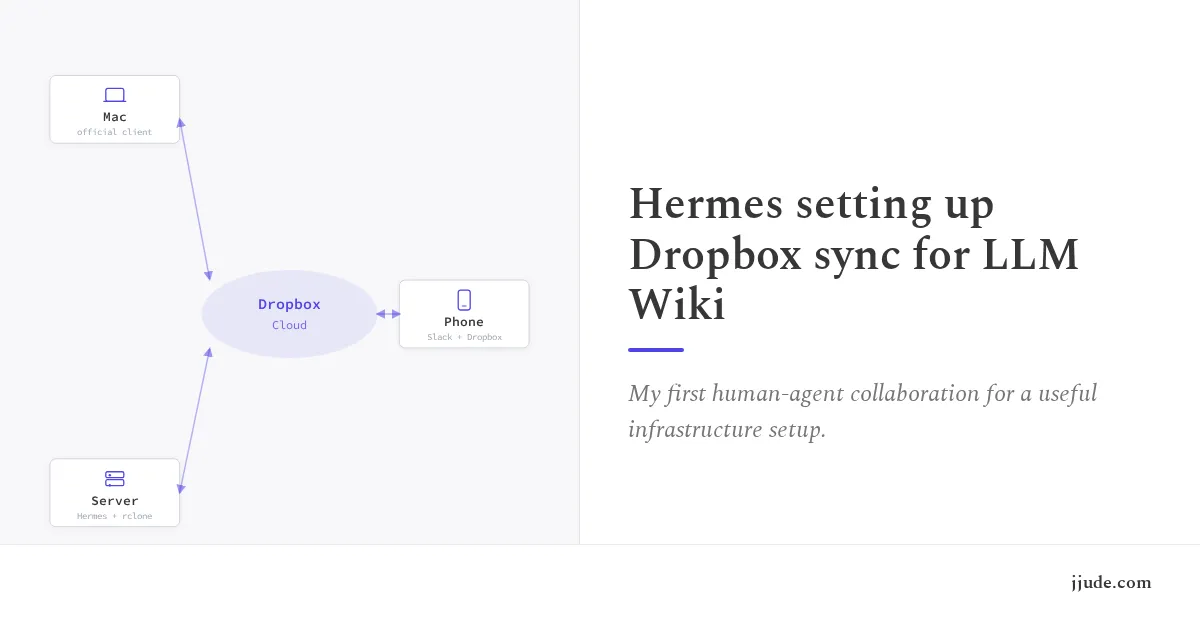
My AI assistant Hermes writes to a markdown wiki on a Linux server. I work on a Mac. I copied files between them manually, using a custom script with rsync. I wanted files from wiki to appear on my Mac automatically, and anything I dropped into that folder to sync back to the server.
I considered two possible integrations
- Google Workspace
- Dropbox
Google Workspace requires OAuth per-service (Gmail, Drive, Docs, Sheets each have separate APIs and scopes). Dropbox has a single API surface.
rclone supports both, but the setup experience differs dramatically. I chose rclone with Dropbox because the setup takes less than 30 minutes. Google Workspace would have taken hours of Cloud Console configuration (I had to do it for connecting GSheets with Hermes).
Here's what happened, and what I learned about working with an AI assistant on infrastructure tasks.
# The Division of Labor
I gave Hermes a single instruction: "Set up bidirectional sync between the wiki and Dropbox." Installing rclone, configuring the API, testing the sync, setting up the cron job. Hermes handled all of it. I did two things (about 5 minutes total):
- Created the Dropbox app in the developer console
- Provided the app key and secret
That's it. I didn't log into the server. I didn't write configuration files. I didn't debug errors. Hermes did all of that and told me what it needed from me at each step.
This is the pattern worth exploring: what can an AI assistant handle when it comes to infrastructure, and where does the human need to step in?
# Why rclone Over the Official Dropbox Client
The official Dropbox client runs on Mac and syncs a designated folder. It works well for Mac-to-cloud sync. But I needed server-to-cloud sync, and Dropbox has no official Linux client that runs headless on a server without a desktop environment.
rclone fills this gap. It's a single binary that supports Dropbox (and 70+ other cloud providers) via API. On the server, rclone handles the sync. On my Mac, the official Dropbox client handles the sync. Dropbox cloud sits in the middle. No rclone needed on the Mac.
The architecture: Mac ↔ Dropbox ↔ Server. The official client handles the Mac side. rclone handles the server side. Both sync to Dropbox cloud.
# The Setup: What Hermes Did vs. What I Did
# Step 1: Create a Dropbox App (I did this)
I went to the Dropbox Developer Console and created an app called "hermeswiki." I chose "Scoped access" with "App folder" permission — not "Full Dropbox." App folder limits the app to a single dedicated folder (Dropbox:/Apps/hermeswiki/), which is more secure than giving it access to everything.
I enabled four permissions:
files.metadata.readfiles.metadata.writefiles.content.readfiles.content.write
I skipped the sharing permissions (sharing.read, sharing.write) because I don't need to share files through Dropbox, just sync them.
I set the app to "Development" status because I'm the only user. Production status requires Dropbox review and is meant for apps that other users will authorize.
This gave me app key and secret, which I wrote into Hermes .env file.
# Step 2: Hermes Did The Rest
Hermes downloaded rclone directly and installed it within the podman container. Hermes put rclone in ~/bin/ because the server doesn't have root access for system-wide installation. I didn't ask it to do this. It figured out the permission constraint on its own.
Hermes created the config file at ~/.config/rclone/rclone.conf and generated an OAuth URL for me to visit. It showed the URL on slack and asked me to visit it. It looked something like this:
echo "https://www.dropbox.com/oauth2/authorize?client_id=$DROPBOX_APP_KEY&response_type=code&token_access_type=offline"
I visited the URL in my browser, authorized the app, and copied the code parameter from the redirect URL. Then Hermes exchanged it for tokens. The response gave Hermes an access_token and refresh_token. It put both in the rclone config file.
Hermes then verified the connection by creating a test file in the dropbox folder. I confirmed that I can see the file on my Mac.
Hermes then ran the initial sync. This took about 10 minutes for 1500 files (the wiki is 1500 markdown files). After the initial sync, subsequent runs took about 6 seconds.
Hermes also created a sync script at ~/.hermes/scripts/sync-wiki-dropbox.sh. It automatically figured out that there has to be a lock file to prevent concurrent runs. Now the sync cron runs every 5 minutes.
# The Audit: What Hermes Checked
After the setup, I asked Hermes to audit the configuration for performance and security issues. Here's what it found:
# Performance
The initial --resync took 10 minutes for 1500 files. Normal incremental syncs take 6 seconds. The 5-minute cron interval means changes appear on both sides within 5 minutes. For a markdown wiki, this is fine. If I needed real-time sync, I'd use rclone mount instead, but that's slower for writes and less reliable.
The lock file mechanism prevents overlapping runs. If a sync takes longer than 5 minutes (unlikely for incremental, but possible for large changes), the next cron run exits immediately instead of queuing up.
# Security
The rclone config file contains the client_secret and access_token in plain text. The file permissions are 600 (owner read/write only), owned by the hermes user. This is acceptable for a single-user server. On a multi-user server, I'd encrypt the config or use environment variables.
The .env file also has 600 permissions. The Dropbox app uses "App folder" scope, so even if the credentials leak, the attacker can only access Dropbox:/Apps/hermeswiki/, not my entire Dropbox.
The refresh token lets rclone get new access tokens without re-authorization. Dropbox access tokens expire every 4 hours. rclone handles this automatically.
# What I Learned About Working with Hermes
This task revealed a pattern: the human provides credentials and decisions; the AI handles implementation and debugging.
I made three decisions:
- Use rclone instead of Google Workspace
- Use "App folder" instead of "Full Dropbox"
- Use development status instead of production
Hermes executed everything else. When it hit errors (the scope issue, the path issue), it debugged them without asking me. When it needed credentials, it told me exactly what to provide and where. When it finished, it audited its own work.
What Hermes did mattered less than what it didn't ask: it didn't ask me to approve each step, verify the config file, or confirm the cron schedule. It made reasonable defaults and moved forward. I only intervened when it needed something only I could provide (the Dropbox app creation and OAuth authorization).
This is the collaboration model I want to refine: I set the direction, Hermes executes, and we review together at the end. The blog post you're reading is the result of that review.
# What I'd Do Differently
I'd also add error notification. The cron job runs silently. If a sync fails, I won't know until I check. A simple email or Slack notification on failure would help.
# The Result
The wiki now syncs automatically between my server and Mac. I drop files in Dropbox:/Apps/hermeswiki/wiki/ on my Mac, and they appear on the server within 5 minutes. Hermes writes to the wiki on the server, and I see the changes on my Mac. The friction is gone.
The sync also unlocked something I didn't expect: full mobile workflow. Dropbox is on my phone, Slack is on my phone, Hermes runs on the server. I can draft blog posts, post to social media, create invoices, or ingest a YouTube video I find interesting, all from my phone, all through Slack. I can also edit files directly in Dropbox on mobile, and the changes sync back to the server. It works both ways. Hermes is the agent on the cloud. Dropbox holds the files. Slack is the interface.
Total setup time: 30 minutes. Total cost: free (Dropbox basic plan, rclone is open source). Total effort on my part: 5 minutes creating the Dropbox app and providing credentials. The rest was Hermes.
The lesson: for file sync between a server and a personal machine, rclone with a cloud provider is simpler than building a custom integration. The official client handles one side, rclone handles the other, and the cloud provider handles the transport. If you have an AI assistant, let it do the implementation.
I edited these experiences into a more complete guide — I WINS. Hermes Helps. — covering setup, skills, and the thinking behind each use case. If you want the full picture in one place, you can get it here.
Under: #hermes , #aieconomy , #tools , #tech